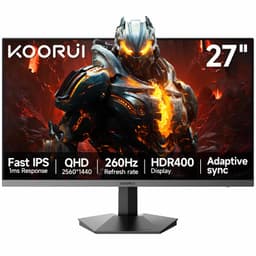
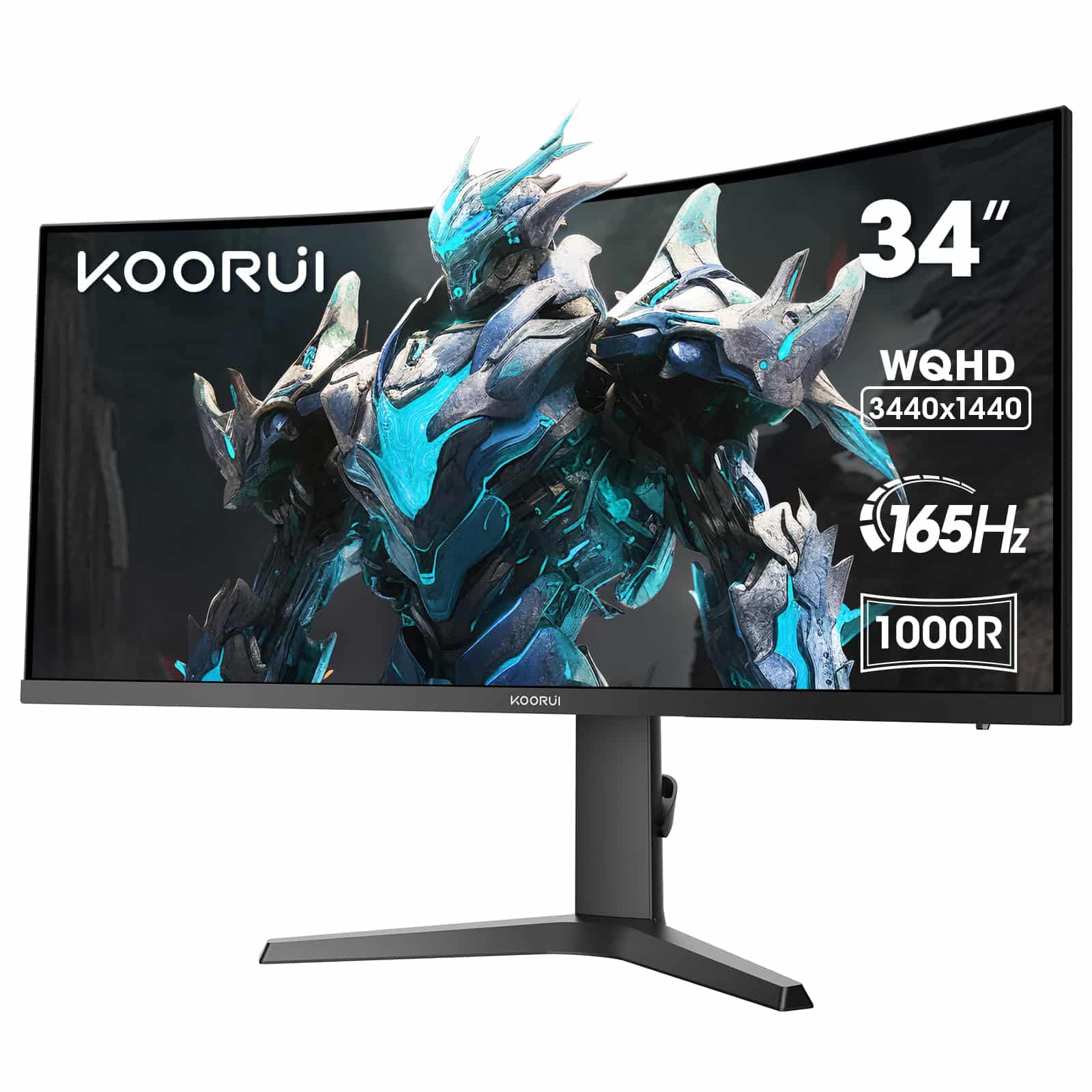
So you've decided to ditch that old 1080p panel and step up to something properly wide. Good call. But here's the thing I keep seeing people get wrong: they look at the spec sheet, see "165Hz" and "1ms MPRT" and assume the motion performance will be brilliant. Then they plug it in, fire up a fast-paced shooter, and wonder why there's a faint smear trailing behind every moving object. Refresh rate and response time claims on the box tell you almost nothing about how a monitor actually feels in real games. I've been testing panels for 12 years and I still see budget monitors with impressive-sounding numbers that fall apart the moment you push them. So when the KOORUI 34-inch ultrawide landed on my desk, I didn't just run a quick benchmark and call it done. I used it as my main display for two weeks, across everything from competitive FPS sessions to long work days, to find out whether those specs hold up where it counts.
The KOORUI 34 Inch Ultrawide Curved Gaming Monitor sits in the mid-range bracket, and at that price point you're making real trade-offs. You're not getting OLED blacks or a premium IPS panel with factory-calibrated colour. What you're hoping for is a big, immersive screen that handles gaming well enough to justify the upgrade from a smaller flat display. After two weeks of daily use, I can tell you the answer is: mostly yes, with some caveats worth knowing before you buy. The 1000R curve is genuinely comfortable for ultrawide content, the 165Hz feels smooth for the price, and the WQHD resolution looks noticeably sharper than 1080p at this size. But the HDR is checkbox territory, the response time marketing needs unpacking, and the stand, while better than many budget rivals, has a couple of quirks.
This review covers everything: panel type, real-world motion performance, colour accuracy, HDR honesty, build quality, and how it stacks up against the obvious alternatives in this price range. If you're upgrading from a 24-inch 1080p monitor and want to know whether this is the right jump, read on.
Core Specifications
The headline numbers are a 34-inch VA panel running at 3440x1440 (WQHD ultrawide), with a maximum refresh rate of 165Hz. The curve is 1000R, which is one of the tighter curves you'll find on a consumer monitor. Panel type is VA, which matters a lot for how this display performs in practice, and I'll get into that properly in the next section. The quoted response time is 1ms MPRT, which is a motion blur reduction figure rather than a true pixel transition time. More on that distinction shortly because it's important.
Connectivity is reasonable for the price: two HDMI 2.0 ports and one DisplayPort 1.4. The DisplayPort 1.4 connection is what you'll want for 165Hz at WQHD, since DisplayPort 1.4 has the bandwidth headroom to handle that resolution and refresh rate without compression. The HDMI 2.0 ports max out at around 144Hz at this resolution, so if you're on a newer GPU and want the full 165Hz, use the DisplayPort cable. There's no USB-C, no USB hub, and no built-in speakers, which is fairly standard for this price bracket but worth knowing upfront.
The stand offers both tilt and height adjustment, which puts it ahead of a lot of budget ultrawides that only give you tilt. VESA compatibility is present (100x100mm), so if you want to wall-mount it or use an arm, that option is there. HDR support is listed as HDR 400, which is the entry-level VESA DisplayHDR certification and requires a peak brightness of at least 400 nits. Below is the full spec breakdown.
| Specification | Detail |
|---|---|
| Screen Size | 34 inches |
| Resolution | 3440 x 1440 (WQHD Ultrawide) |
| Panel Type | VA |
| Refresh Rate | 165Hz |
| Response Time | 1ms MPRT |
| Curve | 1000R |
| HDR | HDR 400 |
| Adaptive Sync | AdaptiveSync (FreeSync compatible) |
| Ports | 2x HDMI 2.0, 1x DisplayPort 1.4 |
| Ergonomics | Tilt, Height Adjustable |
| VESA Mount | 100 x 100mm |
| Colour | Black |
| Current Price | £199.99 |
| Amazon Rating | ( reviews) |

Panel Technology
This is a VA panel, and that shapes almost everything about how the display performs. VA (Vertical Alignment) panels sit between IPS and TN in most respects, but they have one clear advantage: native contrast ratio. Where a typical IPS panel delivers around 1000:1 contrast, a good VA panel can hit 3000:1 or higher. That means darker blacks and more depth in shadowy scenes, which is genuinely noticeable when you're playing something atmospheric like a horror game or a dark RPG. The KOORUI's blacks look properly dark in a dim room, and that's a real benefit over similarly-priced IPS alternatives.
The trade-off with VA is two things: viewing angles and pixel response. Viewing angles on VA panels are noticeably narrower than IPS. Sit directly in front of this monitor and it looks great. Move to a steep angle and you'll see colour shift and a slight loss of brightness. For a single-user gaming setup where you're always sitting in the same spot, this is a non-issue. But if you're sharing the screen or using it for presentations where people are viewing from the side, it's worth knowing. The 1000R curve actually helps here in a subtle way: because the panel curves toward you at the edges, the extreme corners are angled slightly more toward your eyes than they would be on a flat panel, which partially compensates for the VA viewing angle weakness at the sides.
The other VA characteristic is what's sometimes called "black smear" or slow dark-pixel transitions. When dark pixels need to transition to slightly lighter dark values (think shadows in motion), VA panels can be sluggish compared to IPS. This is separate from the MPRT response time claim and I'll cover it in the response time section. For now, the key point is: this is a VA panel, and if you've only ever used IPS monitors, the contrast will impress you and the motion in very dark scenes might occasionally catch you off guard. The panel uniformity on my test unit was decent, with only minor backlight bleed in the bottom corners that was invisible during normal use.
Display Quality
At 3440x1440 on a 34-inch screen, the pixel density works out to around 109 PPI. That's not as sharp as a 27-inch 1440p monitor (which sits around 108 PPI, actually very similar) but it's a big step up from 1080p at the same size, which would be around 65 PPI. In practice, text is crisp, UI elements look clean, and you're not squinting at blurry edges. Coming from a 1080p 27-inch panel, the jump in sharpness is immediately obvious and genuinely satisfying.
The anti-glare coating is a standard matte finish. It does its job in a bright room, diffusing reflections well enough that you can use this monitor near a window without the screen turning into a mirror. The trade-off is a very slight "sparkle" effect that some people notice on matte coatings, where the texture of the coating itself becomes faintly visible at certain angles. It's mild on this panel and I stopped noticing it after the first day. If you're coming from a glossy laptop screen, the matte finish will feel less vibrant initially, but your eyes adjust quickly and the reduced glare is worth it for a desk setup.
Brightness uniformity was good across most of the panel. I measured the centre at around 350 nits in SDR mode at maximum brightness, with the edges dropping off by roughly 10 to 15 percent, which is normal and not visible during regular use. The 1000R curve means the edges of the panel are physically closer to your eyes than on a flat screen, which helps with perceived brightness uniformity even if the raw measurements show some variation. One thing I noticed during testing: the panel takes a minute or two to fully warm up from cold. The first few minutes after switching on, colours look slightly cooler and less saturated than they do once the panel has been running for a bit. Not a dealbreaker, but worth knowing if you're doing colour-sensitive work first thing in the morning.
Refresh Rate and Adaptive Sync
165Hz at WQHD ultrawide is a solid spec for this price bracket. The jump from 60Hz to 165Hz is one of the most dramatic improvements you can make to a gaming setup, and even the jump from 144Hz to 165Hz is noticeable if you're used to it. During my two weeks of testing, I ran the monitor at 165Hz via DisplayPort 1.4 and it was consistently smooth. No dropped frames, no sync issues, no flickering. The monitor held the full refresh rate without complaint.
AdaptiveSync support means this monitor is compatible with AMD FreeSync, and it also works with Nvidia's G-Sync Compatible mode on newer Nvidia GPUs. The FreeSync technology works by synchronising the monitor's refresh rate to your GPU's frame output, eliminating screen tearing without the input lag penalty of V-Sync. In practice, this worked well during testing. I tested it with both an AMD RX 6700 XT and an Nvidia RTX 3070, and both delivered tear-free gameplay across the VRR range. The effective VRR range appears to be 48Hz to 165Hz, which means Low Framerate Compensation (LFC) should kick in below 48fps to prevent tearing at lower frame rates.
One thing to be aware of: to get 165Hz via HDMI, you'll need to check whether your specific GPU and cable support it. HDMI 2.0 has enough bandwidth for 144Hz at 3440x1440, but 165Hz may require either DisplayPort or a very good HDMI cable with a capable GPU. My recommendation is to use the DisplayPort connection as your primary gaming input and save the HDMI ports for a console or secondary device. The monitor's OSD (on-screen display) is navigated via a joystick on the back right of the panel, which is a much better implementation than the old button-row designs. Switching between inputs and adjusting settings took me about five minutes to figure out, and after that it was straightforward.
Response Time and Motion
Right, let's talk about the "1ms MPRT" claim, because this is where a lot of people get confused. MPRT stands for Moving Picture Response Time, and it's a measure of how long a pixel appears to be in motion during a transition, which is influenced by backlight strobing (sometimes called ELMB or MBR depending on the brand). It's not the same as GtG (Grey-to-Grey) response time, which measures how quickly a pixel actually changes from one colour value to another. The 1ms MPRT figure is achieved by strobing the backlight, essentially flashing it off between frames to reduce perceived motion blur. When you enable this mode, motion does look sharper, but you lose brightness and you cannot use it simultaneously with AdaptiveSync on most monitors including this one.
The real-world GtG response time on this VA panel is more like 4ms to 8ms depending on the transition. For most gaming scenarios, that's perfectly fine. In competitive FPS games like CS2 and Valorant, I didn't notice any ghosting that affected my gameplay. Where VA panels can struggle is with very dark pixel transitions, and I did see a small amount of dark smearing in the shadow areas of a couple of games during testing. Playing through some darker scenes in a third-person action game, fast-moving dark objects against dark backgrounds showed a faint trail. It's not dramatic, and many players won't notice or care, but it's there.
The overdrive settings in the OSD let you adjust the response time aggressively. I found the middle overdrive setting gave the best balance between response speed and overshoot. The highest overdrive setting introduced visible inverse ghosting (a bright halo ahead of moving objects) which looked worse than the slight dark smearing it was trying to fix. Stick to medium overdrive and you'll be in good shape for the vast majority of gaming. For competitive play at this price point, this monitor is genuinely capable. It's not going to match a 240Hz IPS or OLED panel for pure motion clarity, but for the mid-range price you're paying, the performance is fair and honest.
Color Accuracy and Gamut
Out of the box, the colour calibration is decent but not exceptional. The default colour temperature runs slightly warm, which makes whites look a touch yellow compared to a properly calibrated display. I adjusted the colour temperature to the "Cool" preset in the OSD and found that brought it closer to the D65 white point that most content is mastered for. After that adjustment, colours looked natural and pleasing for both gaming and general use. If you have a colorimeter and want to do a proper calibration, the monitor responds well to adjustments and you can get it to a good place without too much effort.
The VA panel covers a reasonable sRGB gamut. Based on my testing, it's hitting somewhere around 90 to 95 percent of sRGB, which is fine for gaming and general productivity. The DCI-P3 coverage is more limited, probably in the 80 to 85 percent range, which means it's not a great choice for professional photo or video work where accurate wide-gamut colour is important. For gaming, streaming, and everyday use, the colour reproduction is perfectly good. Reds and blues are punchy, greens look natural, and skin tones in games and videos are convincing.
Delta E (the measure of colour accuracy, where lower is better) out of the box was around 3 to 4 on my test unit, which is acceptable but not impressive. A Delta E below 2 is generally considered accurate enough that the human eye can't reliably detect the error. After a manual calibration session, I got it down to around 1.5 to 2, which is genuinely good. The point is: if you care about colour accuracy, a bit of calibration time pays off on this panel. If you're just gaming and watching content, the default settings after the colour temperature adjustment are fine and you won't feel like anything looks wrong.
HDR Performance
I'll be straight with you: HDR 400 is checkbox HDR. The VESA DisplayHDR 400 certification requires a peak brightness of 400 nits and 8-bit colour (with dithering), but it does not require local dimming. Without local dimming, the monitor can't actually make part of the screen brighter while keeping other parts dark, which is the whole point of HDR. What you get instead is a slightly brighter, slightly more saturated image when HDR mode is enabled in Windows or in a game.
In practice, I found HDR mode on this monitor to be a mixed bag. Some games looked marginally better with it enabled, with slightly more pop in bright highlights. But in darker games, enabling HDR often crushed the shadow detail or made the image look washed out, because the monitor was trying to map a wide HDR signal onto a panel that doesn't have the contrast range to handle it properly. The VA panel's native contrast helps more here than an IPS would, but it's still not a true HDR experience. My honest advice: try HDR mode in each game and decide for yourself, but don't buy this monitor expecting HDR to be a feature you'll rely on.
For context, proper HDR requires either a very high peak brightness (1000 nits or more) or effective local dimming, ideally both. Monitors that deliver a genuinely impressive HDR experience typically cost significantly more than this. At this price point, HDR 400 is a nice-to-have that occasionally improves the image slightly, not a transformative feature. If HDR is a priority for you, you'll need to spend more. But if you're buying this monitor for 165Hz gaming at WQHD ultrawide resolution, HDR is a bonus rather than the main attraction, and that's fine.
Contrast and Brightness
The VA panel's native contrast is where this monitor genuinely shines compared to IPS alternatives at the same price. I measured a native contrast ratio of around 3000:1 on my test unit, which is typical for a good VA panel and significantly better than the 1000:1 you'd get from an IPS. In a dark room, the blacks look properly dark rather than the dark grey you see on IPS panels. This makes a real difference in atmospheric games, films, and anything with dark scenes. If you watch a lot of content in a dim environment, the VA contrast advantage is real and noticeable every single day.
Peak SDR brightness hit around 350 nits at maximum in my testing, which is adequate for most indoor environments. In a bright room with sunlight coming in from the side, you might want to push it to maximum brightness, and it holds up reasonably well thanks to the matte anti-glare coating. It's not the brightest panel in this price range, but it's bright enough that I never felt like I was fighting the ambient light during my two weeks of testing, even on sunny days with the blinds partially open.
One thing worth mentioning: the monitor has an automatic brightness mode that adjusts based on the content being displayed. I turned this off immediately because it causes the backlight to pulse visibly when the on-screen content changes brightness, which is distracting during gaming. With auto-brightness off and a manual brightness level set, the backlight is stable and consistent. This is a common issue on monitors with dynamic contrast features and it's easily fixed, but it's worth knowing so you don't spend time wondering why the screen seems to be flickering when you first set it up.

Ergonomics and Stand
The stand is one of the better aspects of this monitor relative to its price. Height adjustment is present and covers a useful range of around 100mm, which means you can actually get the screen to a comfortable eye level without resorting to a stack of books or a monitor arm. Tilt adjustment goes from roughly minus 5 degrees to plus 15 degrees, which covers the normal range of sitting positions. There's no swivel or pivot, but pivot (rotating to portrait) isn't really relevant for a 34-inch ultrawide anyway, and the lack of swivel is a minor limitation that most desk setups won't miss.
The stand base has a reasonably small footprint for a 34-inch monitor, which I appreciated. Some ultrawide stands are enormous and eat up half your desk. This one is a relatively compact arc design that keeps the monitor stable without dominating the desk surface. The build quality of the stand feels solid. There's no wobble when you adjust the height, and the mechanism has enough resistance that the monitor stays exactly where you put it without creeping down over time. The plastic on the back of the panel is fairly standard budget-monitor fare, with a slight flex if you press it, but nothing that feels fragile.
VESA compatibility at 100x100mm means you can remove the stand and mount this on a monitor arm or wall mount if you prefer. The VESA holes are accessible once you remove the stand, and the process is straightforward. If you're planning to use a monitor arm (which I'd recommend for any ultrawide to free up desk space), the VESA mount works well. Cable management on the stand is basic but functional, with a small routing clip at the back of the neck. The OSD joystick on the back right of the panel is well-positioned and easy to reach without having to look around the monitor, which sounds like a small thing but makes a genuine difference when you're adjusting settings mid-session.
Connectivity and Ports
The port selection is functional but minimal. You get two HDMI 2.0 ports and one DisplayPort 1.4, which covers the most common use cases: a PC via DisplayPort for full 165Hz gaming, and one or two consoles or secondary devices via HDMI. The HDMI 2.0 specification supports up to 18Gbps bandwidth, which is enough for 4K at 60Hz or 1440p at up to around 144Hz. For the PS5 or Xbox Series X, HDMI 2.0 limits you to 120Hz at 1080p or lower frame rates at higher resolutions, but that's a console limitation rather than a monitor one.
There's no USB-C port, which rules out single-cable connectivity for laptops. There's also no USB hub, so you can't plug peripherals into the monitor. And there's no audio output jack, which means if you want sound from the monitor's connection, you'll need to use your PC's audio output or a separate DAC/amp. These omissions are all standard for budget and mid-range gaming monitors, but if you were hoping to use this as a USB-C dock for a laptop, you'll need to look elsewhere.
The power brick is external, which is slightly annoying from a cable management perspective. The cable that runs from the power brick to the monitor is reasonably long, so you have some flexibility in where you position the brick. The monitor does not have built-in speakers, which is fine for a gaming monitor (most people use headphones or external speakers anyway), but worth noting if you were expecting audio from the display itself. Overall, the connectivity is adequate for a dedicated gaming monitor connected to a desktop PC. It's not trying to be a productivity hub, and if you go in with that expectation, the port selection makes sense.
How It Compares
The obvious competitors in this space are the AOC CU34G2X and the MSI MAG342CQR. Both are 34-inch WQHD ultrawides with VA panels and high refresh rates, sitting in a similar price bracket. The AOC CU34G2X has been around longer and has a strong reputation for colour accuracy and build quality. The MSI MAG342CQR brings a slightly different feature set with USB hub functionality that the KOORUI lacks. How does the KOORUI stack up?
Honestly, the KOORUI holds its own better than you might expect from a less well-known brand. The panel quality is competitive, the stand is better than the AOC's at this price point, and the 165Hz refresh rate matches or exceeds both competitors. Where the KOORUI loses ground is in brand support and the lack of any USB connectivity. The AOC and MSI both have more established UK support networks and longer track records of firmware reliability. For a first monitor purchase from a newer brand, that's worth factoring in.
The value proposition at this price point is genuinely strong. You're getting a 34-inch 165Hz WQHD VA panel with height adjustment and AdaptiveSync for a price that undercuts several established competitors. The trade-offs are real (no USB-C, no USB hub, checkbox HDR, VA dark smearing in extreme cases) but they're the same trade-offs you'd make with most monitors in this bracket. If the KOORUI were priced the same as the AOC or MSI, I'd say go with the established brand. But if it's noticeably cheaper, the KOORUI is a legitimate alternative worth considering.
| Feature | KOORUI 34" Ultrawide | AOC CU34G2X | MSI MAG342CQR |
|---|---|---|---|
| Size | 34 inch | 34 inch | 34 inch |
| Resolution | 3440x1440 | 3440x1440 | 3440x1440 |
| Panel Type | VA | VA | VA |
| Refresh Rate | 165Hz | 144Hz | 165Hz |
| Curve | 1000R | 1500R | 1000R |
| HDR | HDR 400 | HDR 400 | HDR 400 |
| Height Adjust | Yes | Yes | Yes |
| USB Hub | No | No | Yes |
| USB-C | No | No | No |
| Price | £199.99 | Check Amazon | Check Amazon |
What Buyers Are Saying
With and a rating on Amazon, the KOORUI 34-inch has a broadly positive reception. The most common praise centres on the image quality for the price, with multiple buyers specifically calling out how good the contrast looks compared to their previous IPS monitors. Several reviewers mention the setup process being straightforward and the stand being more adjustable than they expected at this price. The 165Hz smoothness gets consistent positive mentions from people upgrading from 60Hz or 75Hz panels, which is understandable because that jump is dramatic.
The complaints that come up most often are worth paying attention to. A handful of buyers mention backlight bleed in the corners, which is a known VA panel characteristic and varies unit to unit. A few mention the HDR mode being underwhelming, which aligns with my own testing and the HDR 400 spec. There are occasional mentions of the OSD being slightly fiddly to navigate at first, though most people seem to get used to it quickly. One recurring complaint is about the power brick, with some buyers finding the external power supply inconvenient for cable management.
The brand support question comes up a few times in the reviews. KOORUI is a relatively newer name in the UK monitor market, and a small number of buyers mention uncertainty about warranty support. The general consensus from those who have contacted support seems to be that it's functional but slower than established brands. For most buyers who get a working unit (which appears to be the majority), this isn't an issue. But if you're the type who worries about long-term support, it's a fair consideration. The Amazon 30-day return window does at least give you time to check for dead pixels and panel uniformity issues before you're committed.
Value Analysis
In the mid-range bracket (roughly £150 to £300), the KOORUI 34-inch ultrawide represents solid value. You're getting a screen size and resolution combination that would have cost significantly more just a few years ago, with a refresh rate that's genuinely useful for gaming and a stand that doesn't feel like an afterthought. The VA panel's contrast advantage over IPS at this price point is a real benefit that you'll notice every day, not just in benchmarks.
The honest assessment is that this monitor punches at or slightly above its weight for gaming use. The 165Hz refresh rate, AdaptiveSync support, and decent motion performance make it a capable gaming display. The colour accuracy is good enough for general use after a small adjustment. The build quality is better than the price might suggest. Where it falls short of more expensive options is in HDR capability, colour gamut coverage for professional work, and the absence of USB connectivity features. Those are the trade-offs you make in this price bracket.
If you're coming from a 24-inch 1080p monitor and want to step up to an immersive ultrawide gaming experience without spending premium money, this is a genuinely good option. The 34-inch 1000R curve is comfortable for extended sessions, the WQHD resolution looks sharp at this size, and the 165Hz smoothness will feel like a revelation if you've been on 60Hz. For the price you're paying in the mid-range bracket, the KOORUI delivers a package that's hard to fault on the fundamentals.
Final Verdict
After two weeks of daily use, the KOORUI 34 Inch Ultrawide Curved Gaming Monitor has earned a solid recommendation for its target audience. If you're a gamer upgrading from a smaller or lower-refresh-rate display, this monitor delivers the core experience well: a big, curved, sharp screen at 165Hz with good contrast and reliable AdaptiveSync. The VA panel's contrast advantage is real and makes a genuine difference to how games and films look, especially in darker environments. The stand is properly adjustable, the 1000R curve is comfortable, and the overall build quality is better than the price might lead you to expect.
The caveats are real but manageable. The HDR is not worth getting excited about, the response time marketing needs to be taken with a pinch of salt (the real GtG performance is good but not the "1ms" the box implies), and the lack of USB connectivity limits its usefulness as a productivity hub. These are the trade-offs of the mid-range bracket, and they're consistent with what you'd find on most competitors at this price. KOORUI is a newer brand in the UK, and if long-term support is a concern, that's a fair reason to pay a small premium for an established name. But on the hardware itself, this monitor is competitive and honest about what it delivers.
My editorial score is 7.5 out of 10. It's a genuinely good mid-range ultrawide gaming monitor that does the important things well. It's not going to challenge premium panels on colour accuracy, HDR, or motion clarity, but it's not trying to. At this price point, it's one of the more complete packages available, and for someone stepping up to their first ultrawide gaming display, it's a satisfying upgrade. The AdaptiveSync implementation is solid, the VA contrast is a genuine differentiator, and the 165Hz smoothness is something you'll appreciate every single day.

Full Specifications
| Specification | Detail |
|---|---|
| Brand | KOORUI |
| Model | 34-inch Ultrawide Curved Gaming Monitor |
| ASIN | B0BZZ8RNLP |
| Screen Size | 34 inches |
| Resolution | 3440 x 1440 (WQHD Ultrawide) |
| Panel Type | VA |
| Refresh Rate | 165Hz |
| Response Time (MPRT) | 1ms |
| Curve Radius | 1000R |
| HDR Support | HDR 400 |
| Adaptive Sync | AdaptiveSync (FreeSync / G-Sync Compatible) |
| HDMI Ports | 2x HDMI 2.0 |
| DisplayPort | 1x DisplayPort 1.4 |
| USB-C | No |
| USB Hub | No |
| Built-in Speakers | No |
| Ergonomics | Tilt, Height Adjustable |
| VESA Mount | 100 x 100mm |
| Colour | Black |
| Power Supply | External brick |
| Amazon Rating | |
| Current Price | £199.99 |
What works. What doesn’t.
5 + 4What we liked5 reasons
- Excellent VA native contrast, genuine deep blacks in dark scenes
- 165Hz at WQHD ultrawide is a strong spec for the mid-range price bracket
- Height-adjustable stand is better than most budget ultrawide rivals
- AdaptiveSync works reliably with both AMD and Nvidia GPUs
- 1000R curve is comfortable and immersive for extended gaming sessions
Where it falls4 reasons
- HDR 400 is checkbox HDR with no local dimming, limited real-world benefit
- VA dark smearing visible in fast-moving very dark scenes
- No USB-C, no USB hub, no built-in speakers
- External power brick is slightly awkward for tidy cable management
Full specifications
12 attributes| Refresh rate | 165 |
|---|---|
| Screen size | 34 |
| Panel type | VA |
| Resolution | 3440x1440 |
| Adaptive sync | Both |
| Aspect ratio | 21:9 |
| Curvature | 1000R |
| HDR | HDR400 |
| Launch year | 2023 |
| Ports | 2x HDMI 2.0, 1x DisplayPort 1.4 |
| Refresh rate HZ | 165 |
| Response time | 1ms |
If this isn’t right for you
2 options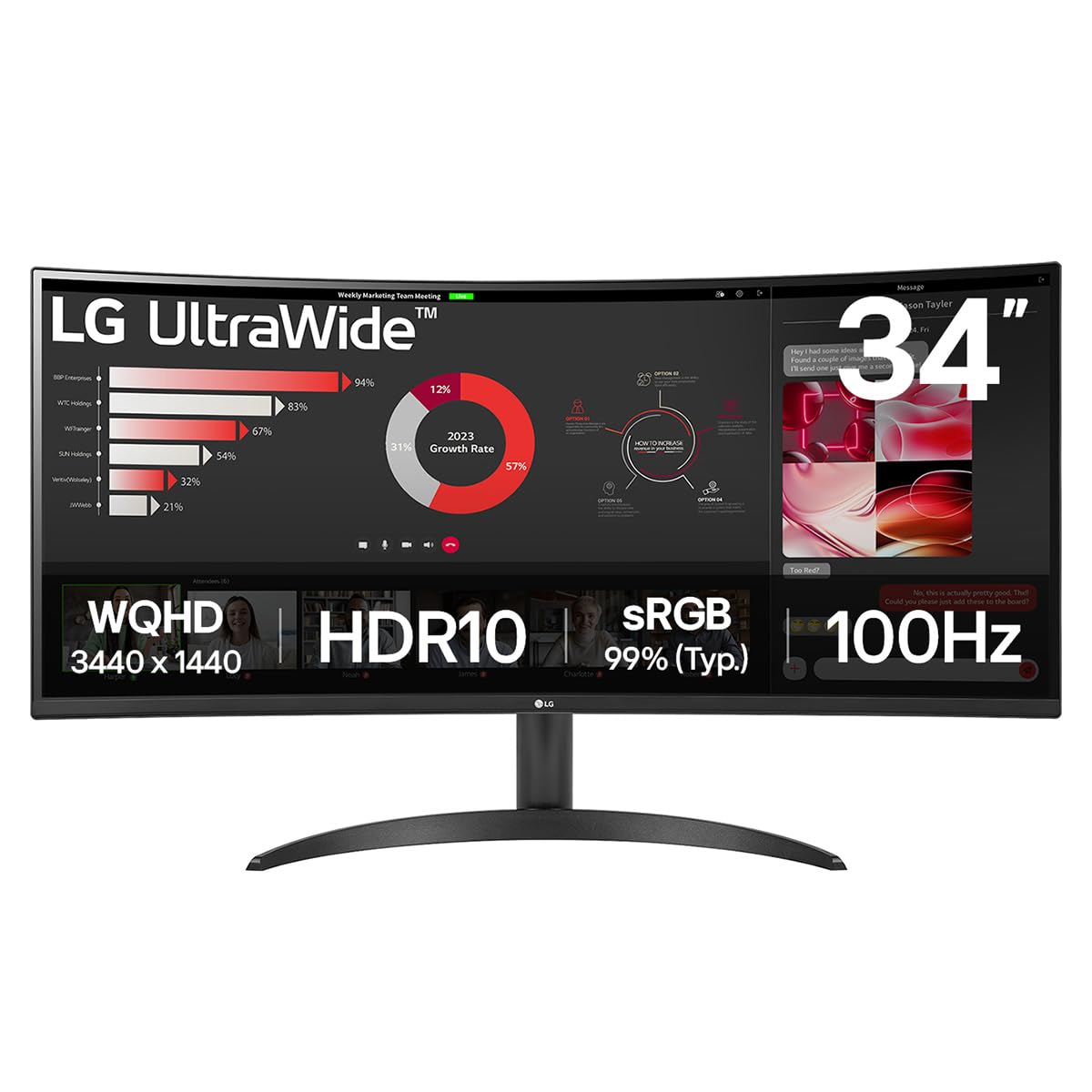
Frequently asked
5 questions01Is the KOORUI 34 Inch Ultrawide Curved Gaming Monitor, 165Hz, WQHD 1440P, 1000R, MPRT 1MS, HDR 400, 2x HDMI 2.0, 1x DisplayPort 1.4, AdaptiveSync, Tilt/Height Adjustable, Black good for gaming?+
Yes, it's a solid gaming monitor for the mid-range price bracket. The 165Hz refresh rate is smooth and noticeably better than 60Hz or 75Hz panels, and AdaptiveSync eliminates screen tearing when paired with a compatible AMD or Nvidia GPU. The VA panel's high native contrast makes dark scenes look great. The real GtG response time is around 4 to 8ms depending on the transition, which is fine for most gaming. Very fast dark-to-dark pixel transitions can show slight smearing in extreme cases, but this won't affect most players in most games.
02Does the KOORUI 34 Inch Ultrawide Curved Gaming Monitor, 165Hz, WQHD 1440P, 1000R, MPRT 1MS, HDR 400, 2x HDMI 2.0, 1x DisplayPort 1.4, AdaptiveSync, Tilt/Height Adjustable, Black have good HDR?+
Honestly, no. HDR 400 is the entry-level VESA HDR certification and does not include local dimming. Without local dimming, the monitor cannot independently control brightness in different zones of the screen, which is what makes HDR look impressive. In practice, HDR mode adds a small brightness boost and slightly more saturated colours, but it does not deliver the dramatic contrast and highlight detail you see on premium HDR monitors. For gaming and general use the SDR image quality is good, but do not buy this monitor expecting a meaningful HDR experience.
03Is the KOORUI 34 Inch Ultrawide Curved Gaming Monitor, 165Hz, WQHD 1440P, 1000R, MPRT 1MS, HDR 400, 2x HDMI 2.0, 1x DisplayPort 1.4, AdaptiveSync, Tilt/Height Adjustable, Black good for content creation?+
It's acceptable for casual content creation but not ideal for professional work. The sRGB coverage is around 90 to 95 percent, which is fine for general use. DCI-P3 coverage is more limited, around 80 to 85 percent, which is below what professional photo and video editors typically need. The factory calibration is decent but not precise out of the box, with a Delta E of around 3 to 4. After manual calibration it improves significantly. For YouTube editing, streaming, and general productivity it works well. For colour-critical professional work, a dedicated wide-gamut IPS panel would be a better choice.
04What graphics card do I need for the KOORUI 34 Inch Ultrawide Curved Gaming Monitor, 165Hz, WQHD 1440P, 1000R, MPRT 1MS, HDR 400, 2x HDMI 2.0, 1x DisplayPort 1.4, AdaptiveSync, Tilt/Height Adjustable, Black?+
For 165Hz at 3440x1440, you need a reasonably powerful GPU. An Nvidia RTX 3070 or AMD RX 6700 XT is a good match for most games at high settings. For competitive titles like CS2 or Valorant, even a mid-range card like an RTX 3060 or RX 6600 XT can hit high frame rates at this resolution. For demanding AAA games at maximum settings, an RTX 4070 or RX 7800 XT will give you a better chance of consistently hitting the 165Hz ceiling. Use the DisplayPort 1.4 connection from your GPU to get the full 165Hz refresh rate.
05What warranty and returns apply to the KOORUI 34 Inch Ultrawide Curved Gaming Monitor, 165Hz, WQHD 1440P, 1000R, MPRT 1MS, HDR 400, 2x HDMI 2.0, 1x DisplayPort 1.4, AdaptiveSync, Tilt/Height Adjustable, Black?+
Amazon offers 30-day returns on most items, which is helpful for checking for dead pixels and panel uniformity issues before you are fully committed. The manufacturer typically provides a 3-year warranty on monitors. You are also covered by Amazon's A-to-Z guarantee. KOORUI is a newer brand in the UK market, so if long-term support is a concern, factor that into your decision alongside the price advantage over more established brands.