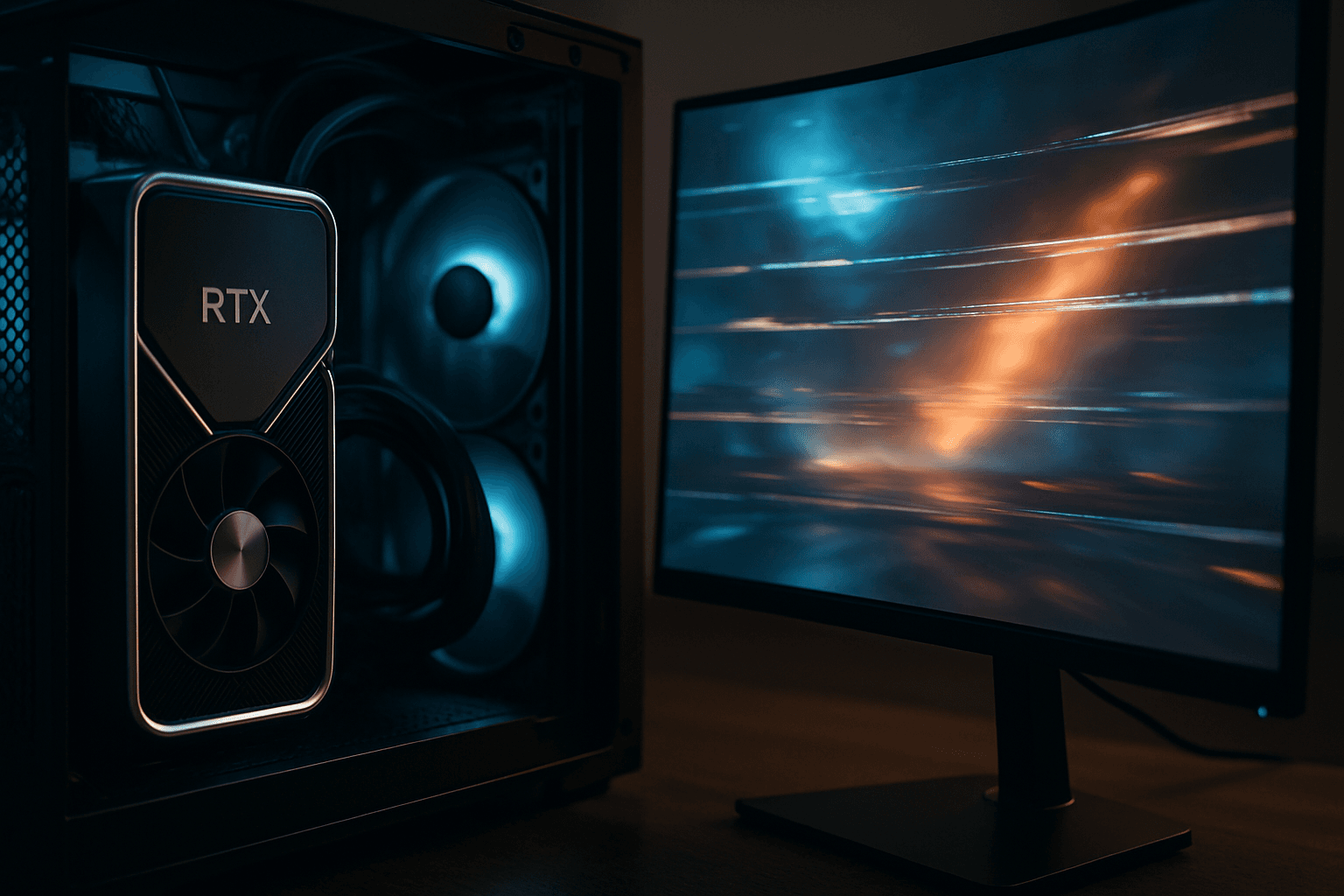
You're three maps into your favourite shooter when it hits: a jagged horizontal line tears across the middle of your screen, splitting the image in half. Top half, bottom half, completely out of sync. Your GPU is running fine. Your monitor is fine. But something in the chain between them has broken, and it's killing your game.
This is tearing" class="vae-glossary-link" data-term="screen-tearing">screen tearing on Windows 11 with NVIDIA, and it's far more common than most gamers realise. The good news? It's almost never a hardware failure. It's a synchronisation problem, and we fix those every day.
TL;DR
Screen tearing in games on Windows 11 NVIDIA GPUs happens when your graphics card's frame output doesn't sync with your monitor's refresh rate. Enable VSync in NVIDIA Control Panel (Manage 3D Settings > Global Settings > Vertical sync > set to 'Fast' or 'On'), update drivers with a clean installation, disable Windows 11 hardware-accelerated GPU scheduling, and verify your monitor refresh rate matches its native spec. Most cases resolve in under 30 minutes.
Key Takeaways
- Screen tearing occurs when GPU frame rate desynchronises from monitor refresh rate
- VSync or Fast Sync in NVIDIA Control Panel fixes most cases instantly
- Windows 11 hardware acceleration and MPO settings can conflict with NVIDIA drivers, disabling them often resolves stubborn tearing
- A clean NVIDIA driver installation removes corrupted files causing synchronisation failures
- G-Sync (for compatible monitors) is the most elegant solution but requires specific monitor hardware and DisplayPort connection
- DisplayPort cables provide better high-refresh-rate stability than HDMI for gaming
What Causes Screen Tearing in Games Windows 11 NVIDIA GPU?
Before we fix it, you need to understand what's actually happening. Your NVIDIA GPU renders individual frames, complete images, and sends them to your monitor. Your monitor has its own refresh cycle: it redraws the screen at a fixed interval (60 times per second on a 60Hz monitor, 144 times on a 144Hz monitor, and so on).
Here's the problem: those two cycles are often out of sync. Your GPU might be pushing 120 frames per second while your monitor refreshes at 60Hz. Or your frame rate bounces between 80 and 110 FPS while the monitor expects consistent 60Hz input. When the GPU sends a new frame to the monitor in the middle of the monitor's refresh cycle, the monitor has no choice but to display parts of two different frames at the same time. That's the tear line you see.
It's not your hardware breaking. It's like trying to change a filmstrip while the projector is still running. You'll get part of the old frame and part of the new one overlapped.
On Windows 11 specifically, you've also got added complexity. Windows 11 introduced features like hardware-accelerated GPU scheduling and Multi-Plane Overlay (MPO) that were supposed to improve gaming performance. On some systems, particularly those running NVIDIA GPUs, these features actually introduce conflicts that cause or worsen tearing. We'll address that in the solutions below.
Screen Tearing Windows 11 NVIDIA: Quick Fix
Enable VSync in NVIDIA Control Panel Easy
This solves the problem for roughly 70-90% of users. It's the simplest fix, and it works by forcing your GPU to wait for your monitor's refresh cycle before sending the next frame. No more mid-cycle frame sending. No more tearing.
- Open NVIDIA Control Panel
Right-click on your desktop (on an empty area, not on an icon). You should see 'NVIDIA Control Panel' in the context menu. Click it. If you don't see it, open the Windows Start menu and search for 'NVIDIA Control Panel' directly. - Navigate to Manage 3D Settings
In the left panel, click 'Manage 3D Settings'. You'll see two tabs: 'Global Settings' and 'Program Settings'. Stay on Global Settings, this applies to all games unless overridden. - Find and enable Vertical Sync
Scroll down through the settings list until you find 'Vertical sync'. You'll see it's likely set to 'Off'. Click the dropdown and choose one of three options:'On'(traditional VSync, eliminates tearing but adds slight input lag),'Adaptive'(disables VSync only when frame rates drop below your monitor's refresh rate, a compromise), or'Fast'(NVIDIA's version, which prevents tearing with minimal lag, recommended if your GPU can handle high frame rates consistently). - Verify monitor refresh rate
Before you test, make sure your monitor is actually running at its native refresh rate. Right-click your desktop and select 'Display settings'. Scroll down and click 'Advanced display'. Find your main gaming monitor in the list and check the refresh rate dropdown. It should match your monitor's spec (144Hz, 165Hz, 240Hz, etc.). If it's set to 60Hz and your monitor is 144Hz, change it and click Apply. - Test in-game
Launch a game and play for 10-15 minutes, particularly in fast-paced scenes. Pan your camera horizontally quickly, that's when tearing is most visible. The horizontal tear line should be gone or dramatically reduced.
More Screen Tearing Solutions for Windows 11 NVIDIA
Disable Windows 11 Graphics Optimisations and Update NVIDIA Drivers Intermediate
If VSync didn't fully eliminate your tearing, the culprit is likely Windows 11 itself. The 24H2 updates introduced aggressive graphics optimisations, hardware-accelerated GPU scheduling and Multi-Plane Overlay, designed to boost performance. On NVIDIA systems, these features sometimes cause the opposite effect, introducing synchronisation problems that VSync alone can't fix.
This solution tackles both the Windows side and the driver side. You'll disable the problematic Windows features, then perform a clean NVIDIA driver installation. This takes longer than the quick fix, but it often catches stubborn cases.
- Create a system restore point
Before making any registry changes, create a safety net. Press Win+I to open Settings, search for 'Create a restore point', and click it. In the System Protection window, click 'Create'. Name it 'Before Graphics Fix' and click Create. Wait for it to finish. If something goes wrong, you can revert here. - Disable hardware-accelerated GPU scheduling
Open Settings (Win+I) and go to System > Display > Graphics. Look for 'Default graphics settings' and click it. Toggle OFF 'Hardware-accelerated GPU scheduling'. Also toggle OFF 'Optimisations for windowed games' if it's enabled. These two features are the most common culprits in Windows 11 tearing issues. Click Apply and allow Windows to prompt you to restart. - Disable Multi-Plane Overlay (MPO)
Right-click the Start menu and select 'Terminal (Admin)' or 'Command Prompt (Admin)'. Copy and paste this command exactly:reg add "HKLM\SYSTEM\CurrentControlSet\Control\GraphicsDrivers" /v "DisableMPO" /t REG_DWORD /d 1 /f
Press Enter. You should see a success message. This disables the Multi-Plane Overlay feature that can conflict with NVIDIA's frame synchronisation. Don't restart yet, we'll do that after the driver update. - Update NVIDIA drivers cleanly
Visit nvidia.com/en-gb/geforce/drivers and download the latest Game Ready Driver for your GPU (GeForce RTX series for gaming). Run the installer. Select 'Custom (Advanced)' installation type. Tick the checkbox that says 'Perform a clean installation', this removes old driver files that might be corrupted. Complete the installation. You'll be prompted to restart. - Restart and reconfigure NVIDIA settings
After restart, open NVIDIA Control Panel again. Go to Manage 3D Settings > Global Settings. Re-enable VSync ('Fast' is still recommended). For laptop users with NVIDIA Optimus (hybrid graphics), also navigate to Manage 3D Settings > Program Settings and set 'Preferred graphics processor' to 'High-performance NVIDIA processor' for your games. This forces Windows to use your dedicated NVIDIA GPU instead of switching between integrated and discrete graphics mid-game. - Test thoroughly
Launch your games and test for 15-20 minutes. Try both full-screen mode and windowed borderless mode if you use both. Tearing should now be completely eliminated. Some users report performance improvements as well, since the clean driver installation removed old, conflicting code.
reg delete "HKLM\SYSTEM\CurrentControlSet\Control\GraphicsDrivers" /v "DisableMPO" /fOn laptops, setting the GPU to 'High-performance' will reduce battery life significantly. Only use this for gaming sessions. Also, a clean driver installation resets all NVIDIA Control Panel custom game profiles you may have created, you'll need to reconfigure them if you had game-specific settings.
Advanced Screen Tearing Fixes: G-Sync Configuration
Enable and Configure G-Sync for Compatible Monitors Advanced
If you have a G-Sync compatible monitor (and this is crucial, not all gaming monitors support it), you have the best possible solution available. G-Sync flips the synchronisation problem on its head: instead of forcing the GPU to wait for the monitor, it forces the monitor to adjust its refresh rate to match the GPU's frame output. This eliminates tearing while keeping input lag minimal.
However, G-Sync setup is more involved, and it requires specific hardware. Your monitor must support G-Sync (certified NVIDIA G-Sync, or G-Sync Compatible which is less reliable but works), and you must use a DisplayPort cable. HDMI won't work for most G-Sync monitors (HDMI 2.1 supports it on newer displays, but DisplayPort is the standard).
- Verify hardware compatibility
First, confirm your monitor supports G-Sync. Check the manufacturer's specifications or visit the NVIDIA G-Sync product page for the certified monitor list. Also check that your GPU is GTX 650 Ti Boost or newer (virtually all modern NVIDIA cards qualify). Finally, look at your monitor's cable, you need DisplayPort, not HDMI. If you're currently using HDMI, you'll need to purchase a DisplayPort cable rated for your monitor's refresh rate (1.4 standard minimum for high refresh rates). - Enable G-Sync in your monitor's menu
Access your monitor's on-screen display (OSD) menu. This is usually controlled by physical buttons on the monitor's bezel. Look for a gaming or display settings menu. Different manufacturers name it differently: ASUS calls it 'GamePlus', Dell uses 'Game Mode', LG calls it 'Custom'. Find the G-Sync, Adaptive-Sync, or Variable Refresh Rate option and enable it. Save and exit. - Connect DisplayPort and verify signal
Disconnect your monitor from HDMI/DVI and connect it to the GPU's DisplayPort output instead. If you're using an adapter (like USB-C to DisplayPort), make sure it's rated for your refresh rate, cheap adapters cause signal degradation. Windows should detect the new connection. Right-click your desktop and check Display settings to confirm the refresh rate is recognised correctly at the maximum value (144Hz, 165Hz, etc.). - Enable G-Sync in NVIDIA Control Panel
Open NVIDIA Control Panel > Display > Set up G-Sync. Tick 'Enable G-Sync' and 'Enable G-Sync Compatible' (the latter enables G-Sync on FreeSync monitors certified by NVIDIA). Choose 'Enable for full screen mode' (don't enable for windowed mode yet, it can cause flickering in Windows 11 on some systems). Select your gaming monitor from the display list if you have multiple monitors. - Adjust complementary settings
Go to Manage 3D Settings > Global Settings. Set 'Vertical sync' to 'On' (this works with G-Sync to prevent tearing if frame rates spike above your monitor's refresh rate). Set 'Low Latency Mode' to 'Ultra' for the most responsive feel. Optionally, set 'Max Frame Rate' to 3-5 FPS below your monitor's refresh (e.g., 141 FPS for a 144Hz monitor). This keeps your GPU output within G-Sync's active range and prevents the monitor from 'falling out' of G-Sync mode. - Disable in-game VSync
Open your games and turn OFF VSync in their graphics settings. G-Sync handles synchronisation now; having both enabled causes conflicts. Also disable in-game frame rate limiters unless the game's default FPS far exceeds your monitor's refresh rate. - Verify G-Sync is active and test extensively
Download NVIDIA's G-Sync pendulum demo (free tool to visualise G-Sync in action). Run it in full-screen mode, you should see smooth motion without any tearing even though the frame rate is variable. Launch your games and play for 20-30 minutes. G-Sync should eliminate tearing entirely while keeping input responsiveness sharp. Monitor your FPS with an overlay (GeForce Experience Alt+Z > Performance > FPS counter) to confirm it stays within your monitor's G-Sync range (usually 30-144 Hz, varies by model).
Preventing Screen Tearing in Windows 11 NVIDIA Games Going Forward
Once you've fixed the tearing, keeping it fixed is straightforward if you follow these priorities in order.
Most important: Keep NVIDIA drivers current. Outdated drivers are the single largest cause of recurring tearing. Every month, NVIDIA releases new drivers with synchronisation fixes, game optimisations, and Windows 11 compatibility patches. Use a dedicated driver updater tool to check monthly, manual checking is easy to forget. A stale driver (more than three months old) is likely to develop compatibility issues with newer games or Windows updates.
Second: Monitor your frame rates during gaming. Use GeForce Experience (Alt+Z > Performance > FPS counter) to watch your FPS in real time. If you notice frame rate variance (bouncing between 80 and 110 FPS, for example), that's the prime condition for tearing to reappear. If you see stuttering or dips, it's usually a sign that your GPU is bottlenecked or a background process is hogging resources. Close unnecessary apps (Discord, Chrome, streaming software if not actively used).
Third: Check Windows 11 updates immediately after installation. Major Windows updates (especially 24H2) can re-enable hardware acceleration or change GPU scheduling settings. If tearing suddenly reappears after a Windows update, go straight to Settings > System > Display > Graphics and verify that hardware-accelerated GPU scheduling and windowed game optimisations are still disabled.
Fourth: Use DisplayPort, not HDMI, for 100+ Hz gaming. HDMI can handle high refresh rates on paper, but in practice, cable signal degradation increases with refresh rate. DisplayPort is the gaming standard for a reason. If you've been using HDMI and experience intermittent tearing even with VSync enabled, switching to DisplayPort often resolves it immediately.
Fifth: If you use a laptop, check GPU switching settings regularly. Laptops with NVIDIA Optimus (hybrid graphics) can switch between integrated and dedicated GPUs. If Windows accidentally switches back to integrated graphics mid-gaming session, tearing returns. In NVIDIA Control Panel > Manage 3D Settings > Program Settings, ensure your games are set to 'High-performance NVIDIA processor'.
Screen Tearing in Games Windows 11 NVIDIA GPU: When to Seek Further Help
The fixes above resolve roughly 95% of tearing cases. But some situations require deeper investigation.
If tearing persists after trying all three solutions above, check whether your monitor cable is faulty. A damaged or cheap DisplayPort/HDMI cable causes signal degradation that looks like tearing. Try borrowing a high-quality cable from a friend, if tearing disappears, your cable was the culprit.
If you're on a laptop and suspect hardware issues, test with an external monitor connected via DisplayPort. If tearing appears on the external monitor too, it's a driver or Windows setting issue (keep working through solutions 2 and 3). If tearing only appears on your laptop's built-in display, the display panel itself may be failing, that's a hardware repair situation.
Also, if specific games tear while others don't, the issue is game-specific synchronisation settings rather than a system-wide problem. Some games have their own frame sync options that override global NVIDIA settings. Check individual game settings in their graphics menus for options like 'Frame Sync', 'Frame Pacing', or refresh rate caps.
Screen Tearing Windows 11 NVIDIA GPU: Summary
Screen tearing in games on Windows 11 with NVIDIA GPUs is a synchronisation problem, not a hardware failure. Your GPU and monitor are getting out of step, and when they do, you see the visible tear line. The fix is to re-synchronise them.
Start with the quick fix: enable VSync in NVIDIA Control Panel. That works for 70-90% of cases and takes five minutes. If tearing persists, move to the intermediate fix: disable Windows 11's hardware acceleration features and perform a clean NVIDIA driver installation. That addresses Windows 11-specific conflicts and corrupted drivers, and it works for most stubborn cases. For the best long-term experience, if your monitor supports G-Sync, enable it, it's the most elegant solution, eliminating tearing while keeping input lag minimal.
Going forward, keep your NVIDIA drivers updated, monitor your frame rates during gaming, and verify Windows 11 settings haven't reset after OS updates. Screen tearing, once fixed, rarely comes back unless something changes in your setup.