Finding a capable programming laptop for under £500 is more achievable in 2024 than it was even twelve months ago, thanks to improved efficiency from Intel's N-series processors and the continued maturation of ChromeOS as a development platform. This roundup is aimed at students learning their first language, bootcamp attendees who need a reliable daily driver, and self-taught developers who cannot justify spending four figures on a machine. The key shift since last year is that 8 GB of RAM is now attainable at the lower end of the budget, and ChromeOS's Linux environment (Crostini) has become stable enough that it genuinely supports VS Code, Python, Node.js and Git without painful workarounds. Windows machines at this price point are still the more flexible choice for most developers, but Chromebooks have closed the gap considerably. We have selected six laptops that sit comfortably under the £500 ceiling and assessed each one specifically for coding workloads.
Quick Verdict
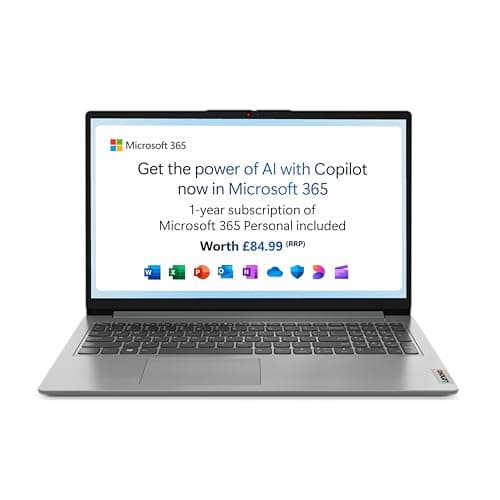
Best Overall: Lenovo IdeaPad Slim 3 (Intel Core i3-N305, 8 GB RAM, Windows 11) offers the most complete programming experience at this price, with a full Windows environment, a proper 1080p IPS panel and enough RAM to run a code editor alongside a browser without constant swapping.
Best Value: ASUS Chromebook Plus 15 CX1505 delivers a large 15.6-inch screen and 8 GB of RAM for a price that undercuts most Windows competitors, making it an excellent choice for anyone happy to work within ChromeOS and its Linux container.
The Lenovo IdeaPad Slim 3 is the standout choice for developers who want a proper Windows laptop under £500. Powered by Intel's Core i3-N305, an eight-core efficiency processor built on the Alder Lake-N architecture, it handles the kinds of tasks that matter most to programmers: compiling small to medium projects, running local development servers, and keeping a code editor, browser and terminal open simultaneously without grinding to a halt. The 8 GB of RAM is the minimum we would recommend for any serious programming work in 2024, and Lenovo has got that right here. The 128 GB UFS storage is a step up from the eMMC found in many budget rivals, offering noticeably faster read and write speeds that make opening large projects and installing dependencies feel more responsive.
The 15.6-inch, 1920x1080 IPS panel is a genuine highlight at this price. IPS technology means wide viewing angles and accurate enough colours that you will not be squinting at your code after an hour. A full HD resolution on a 15.6-inch screen gives you enough vertical space to see a meaningful chunk of code without constant scrolling, which matters more than many buyers realise until they have tried working on a lower-resolution display. The port selection is practical: two USB-A 3.2 Gen 1 ports, one USB-C 3.2 Gen 1 (data only), HDMI 1.4, a 3.5mm audio jack, an SD card reader and a barrel charging port. The USB-C port does not support Power Delivery, so you are tied to the included charger, which is a minor frustration but not unusual at this price.
Windows 11 Home in S mode ships out of the box. S mode restricts app installation to the Microsoft Store only, but switching out of S mode is free and takes about thirty seconds, after which you can install VS Code, Git, Python, Node.js, or any other tool in your workflow. Battery life is rated at around eight hours, which is reasonable for a Windows machine with this processor, though real-world coding sessions with the screen at moderate brightness will likely land closer to six hours. At 3.41 lbs (approximately 1.55 kg), it is not the lightest laptop on this list, but it is perfectly portable for a 15.6-inch machine. For developers who want a full Windows environment, the widest software compatibility and the most headroom for multitasking, the IdeaPad Slim 3 is the clear leader in this roundup.
Pros
- Full Windows 11 environment with broad software compatibility once S mode is disabled
- 8 GB RAM and UFS storage give noticeably better multitasking than eMMC-based rivals
- 15.6-inch 1080p IPS panel is excellent for reading and writing code for long sessions
Cons
- USB-C port is data only, no Power Delivery charging support
- Ships in Windows S mode, requiring a manual switch before installing developer tools
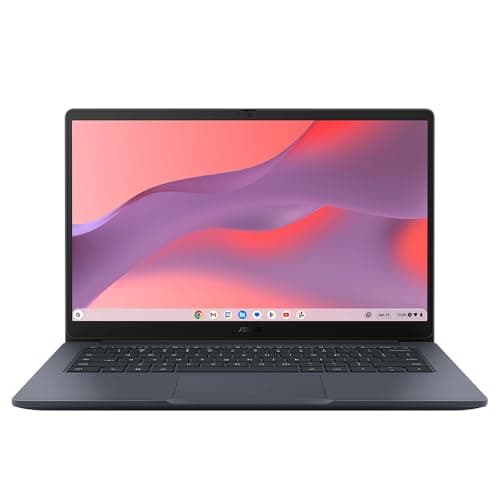
The ASUS Chromebook 14 CX1405CTA occupies an interesting position in this roundup. It is priced in the mid-range of the Chromebook options here, yet it ships with the Intel Core 3 N355, a processor that sits above the Celeron and Pentium chips found in cheaper Chromebooks and offers a meaningful step up in multi-threaded performance. For developers who run multiple processes simultaneously, such as a local web server, a file watcher and a code editor, the N355's additional cores make a noticeable difference compared to the dual-core Celeron N4500 in the CR1100.
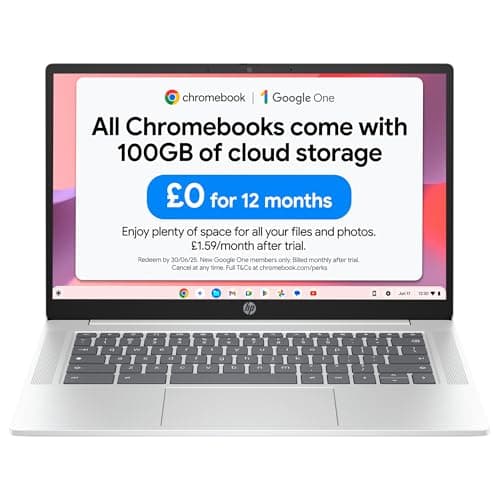
The 14-inch, 1920x1080 IPS display is a genuine strength. At this price, many Chromebooks ship with TN panels that look washed out and have poor viewing angles. The IPS panel here is significantly better for extended work sessions, with accurate colours and a stable image regardless of where you are sitting relative to the screen. The port selection is well thought out for a budget machine: two USB-C 3.2 Gen 1 ports, one USB-A 3.2 Gen 1, HDMI 1.4b, a 3.5mm audio jack and a Kensington lock slot. The dual USB-C ports mean you can charge via USB-C while still having a USB-C port free for peripherals or display output, which is a practical advantage over the HP Chromebook 14's single USB-C setup.
The main limitation is the 4 GB of RAM. For basic ChromeOS use and light Linux work, 4 GB is functional, but it restricts how much memory you can allocate to the Linux container. Running VS Code inside the Linux environment with 4 GB total RAM means ChromeOS itself gets squeezed, and you will notice slowdowns when switching between applications. If you plan to do serious development work, the 8 GB options on this list are preferable. However, for students learning to code who primarily work in a browser-based IDE such as Replit or CodeSandbox, or who are just getting started with Python in a terminal, the CX1405CTA is a capable and well-specified machine. The 64 GB eMMC storage is tight but manageable for a Chromebook, where most files live in the cloud.
Pros
- Intel Core 3 N355 offers better multi-threaded performance than Celeron-based Chromebooks
- Dual USB-C ports allow simultaneous charging and peripheral connection
- 14-inch 1080p IPS panel is comfortable for extended coding sessions
Cons
- 4 GB RAM limits Linux container performance, causing slowdowns with multiple apps open
- 64 GB eMMC storage fills up quickly if you install a large Linux partition
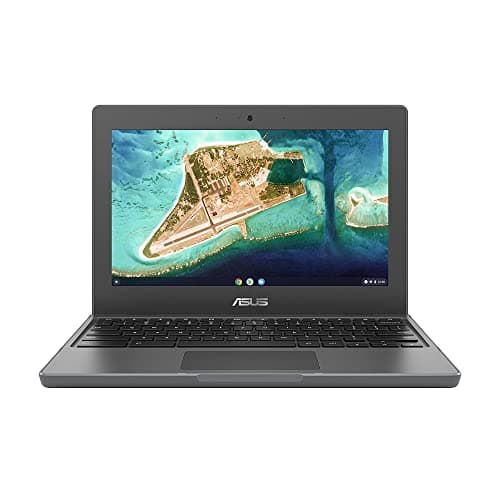
The ASUS Chromebook 11 CR1100 is the most compact and rugged option in this roundup, and it comes with a notable differentiator: a three-year warranty. For students and developers who are hard on their hardware, or who simply want peace of mind over a longer ownership period, that extended warranty has real monetary value. The machine is clearly designed with education and portability in mind, featuring a compact 11.6-inch form factor and a build quality that ASUS describes as able to withstand the rigours of daily student use.
The Intel Celeron N4500 is a dual-core processor that is adequate for light coding tasks: writing scripts, working in a browser-based IDE, running simple Python programmes in a terminal. It is not suited to heavier workloads such as compiling large codebases, running Docker containers or working with data science libraries that demand significant CPU resources. The 4 GB of RAM is the other constraint. ChromeOS is efficient enough that 4 GB feels usable for basic tasks, but the Linux container will be tight, and you should not expect to run VS Code, a local server and multiple browser tabs simultaneously without slowdowns.
The 11.6-inch, 1366x768 TN display is the weakest screen in this roundup. TN panels have narrower viewing angles and less accurate colours than IPS alternatives, and the lower resolution means less code is visible at once. For a developer spending hours in front of a screen, this is a meaningful drawback. That said, the screen is functional, and if you plan to connect an external monitor at a desk, the display quality of the built-in panel matters less. The port selection is practical: two USB-C, two USB-A, a microSD slot and a 3.5mm audio jack. The machine runs ChromeOS with the standard Linux container support. At its price point, the CR1100 is best suited to absolute beginners who want a durable, portable machine with a long warranty for learning the basics of programming, rather than experienced developers with complex workflows.
Pros
- Three-year warranty offers significantly better long-term protection than most budget laptops
- Compact and durable build is well suited to students carrying it between locations daily
- Two USB-C and two USB-A ports provide flexible connectivity for a budget machine
Cons
- 11.6-inch 768p TN panel has poor viewing angles and shows less code per screen than rivals
- Intel Celeron N4500 and 4 GB RAM limit the machine to light coding tasks only
How We Picked
Every laptop in this roundup was assessed against a set of criteria specific to programming workloads rather than general consumer use. We prioritised RAM above all else, because memory is the single biggest bottleneck for developers running code editors, local servers and browsers simultaneously. We required a minimum of 4 GB but favoured 8 GB wherever the budget allowed. Processor performance was evaluated for the kinds of tasks developers actually perform: compiling code, running scripts and handling multiple processes, rather than synthetic benchmarks alone. Display quality was assessed for suitability during long coding sessions, with IPS panels rated above TN equivalents for their better viewing angles and colour accuracy. Port selection was reviewed for practical developer use, including USB-A availability, USB-C functionality and HDMI output. Operating system flexibility was also considered, with Windows machines rated higher for software compatibility and ChromeOS machines assessed on the quality of their Linux container support. All prices were verified against the catalogue at time of writing.
Buying Guide
RAM: the most important specification for programming
When buying a programming laptop under £500, RAM is the single most important specification to prioritise. A code editor such as VS Code, a browser with documentation tabs open, and a local development server can collectively consume 4 to 6 GB of RAM during a normal working session. On a machine with only 4 GB total, this leaves almost no headroom, resulting in constant swapping to storage and a noticeably sluggish experience. Wherever your budget allows, choose a machine with 8 GB of RAM. On ChromeOS, 8 GB is even more important because the Linux container shares memory with the main operating system, so 4 GB machines feel particularly constrained when running developer tools inside the container.
Operating system: Windows vs ChromeOS for developers
At the sub-£500 price point, you will be choosing between Windows and ChromeOS. Windows offers the broadest software compatibility: every major IDE, SDK, language runtime and developer tool has a Windows version. The tradeoff is that Windows machines at this price tend to have less efficient hardware management, and the operating system itself consumes more RAM than ChromeOS. ChromeOS is lighter, more secure and boots faster, but developer tool support depends on the Linux container, which adds a layer of complexity. For beginners working through online courses, ChromeOS is a perfectly valid choice. For developers who need specific Windows-only tools, or who want to use Docker Desktop, Android Studio or other resource-heavy applications, a Windows machine is the safer option.
Storage: eMMC, UFS and Flash compared
Budget laptops under £500 rarely include NVMe SSDs. Instead, you will encounter eMMC, UFS and Flash storage. eMMC is the slowest of the three and is common in budget Chromebooks. UFS, found in the Lenovo IdeaPad Slim 3, is significantly faster and makes a noticeable difference when opening large projects or installing packages. Flash storage, as used in the HP Chromebook 14, sits in a similar tier to eMMC. For programming work, faster storage means quicker project loading times and faster package manager operations. If you have the choice, UFS is preferable to eMMC at this price point.
Display quality and size
A larger screen with a higher resolution lets you see more code at once, reducing the amount of scrolling you do during a session. A 15.6-inch 1080p display is the ideal at this price range. IPS panels are strongly preferable to TN panels for their wider viewing angles and better colour accuracy, which reduces eye strain during long sessions. If you plan to connect an external monitor at a desk, the built-in display matters less, but for portable use, panel quality makes a real difference to daily comfort.
Ports and connectivity
Check that any laptop you consider has at least one USB-A port for legacy peripherals, a USB-C port for modern accessories and charging, and HDMI or USB-C display output for connecting an external monitor. An SD card reader is a useful bonus. Machines with only one or two ports will require a USB-C hub for typical developer setups involving an external keyboard, mouse and monitor.
Final Verdict
The Lenovo IdeaPad Slim 3 is the overall winner in this roundup. It is the only Windows machine on the list, which immediately gives it the broadest software compatibility for developer tools. Its Intel Core i3-N305 processor, 8 GB of RAM, 128 GB UFS storage and 15.6-inch 1080p IPS display form a package that is genuinely capable for programming work, whether you are building web applications, learning Python or working through a computer science curriculum. Once you switch out of Windows S mode, it behaves like a full-featured development machine at a price that would have been impossible to achieve two years ago. The ASUS Chromebook Plus 15 CX1505 earns the Best Value recommendation for developers who are happy with ChromeOS: its 8 GB of RAM and large screen make it the most capable Chromebook in the roundup, and its price undercuts the Lenovo by a meaningful margin. For absolute beginners on the tightest possible budget, the ASUS Chromebook 14 CX1405 entry model gets the job done, but we would encourage anyone who can stretch their budget to opt for an 8 GB machine from the outset.