Most laptop reviews are basically a glorified spec sheet with a benchmark screenshot stapled on. The reviewer spends an afternoon with it, runs Cinebench, and calls it done. That's not how real life works. I used the ASUS Vivobook S 14 S3407QA as my primary machine for two full weeks, taking it on trains, into coffee shops (where a good VPN is worth having for shared Wi-Fi), through back-to-back video calls, and yes, onto the sofa at 11pm when I really should have stopped working. The picture that emerges from that kind of testing is a lot more honest than anything a five-minute benchmark session can tell you.
The Vivobook S 14 S3407QA sits in a genuinely interesting spot right now. The mid-range laptop market in 2026 is crowded with Intel Core Ultra machines and AMD Ryzen 7 options, but ASUS has gone a different route here, pairing the Qualcomm Snapdragon X Plus with a 2.8K display and a headline battery claim of 20 hours. That combination is either a genuinely smart package for commuters and students, or it's a machine that looks great on paper and disappoints in practice. Two weeks of daily use gave me a clear answer.
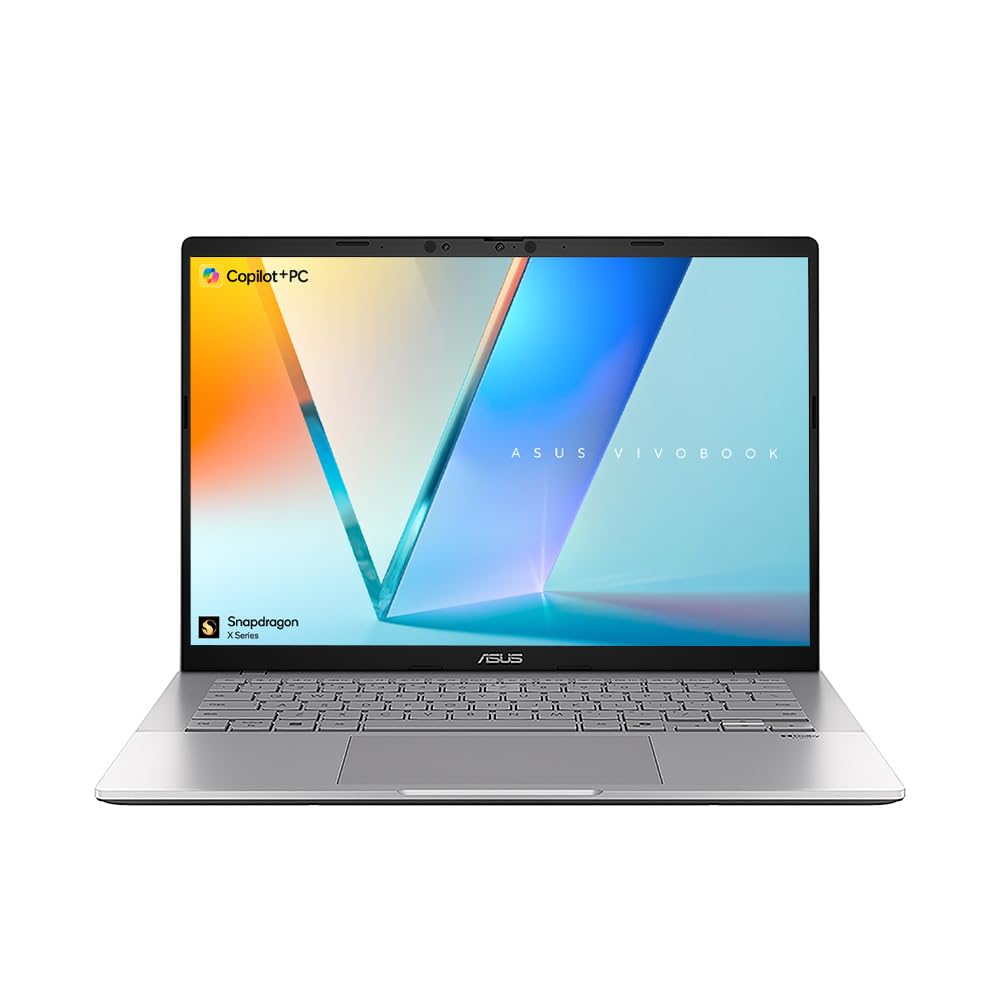
The ASUS Vivobook S 14 S3407QA Laptop with its 14.0-inch 2.8K Screen, CoPilot+ PC credentials, Qualcomm Snapdragon X Plus processor, 16GB RAM, and 1TB PCIe G4 SSD is priced at £550.00, which puts it squarely in mid-range territory. At that price, you're competing with some decent machines. So let's get into whether it earns its place.
Core Specifications
The headline here is the Qualcomm Snapdragon X Plus. This is an ARM-based chip, which means it's architecturally different from the x86 processors you'll find in most Windows laptops. The Snapdragon X Plus is an 8-core variant of Qualcomm's X-series, sitting below the X Elite but still packing a dedicated NPU (neural processing unit) that's required for Microsoft's CoPilot+ PC certification. In practical terms, that NPU handles AI-accelerated tasks like live captions, background blur in video calls, and the various Windows Studio Effects features. Whether you actually use those features day-to-day is another question, but the hardware is there.
The 16GB of RAM is soldered to the board, which is worth knowing upfront. You cannot upgrade it later. For most productivity users, 16GB is fine in 2026, but if you're the sort of person who runs 40 browser tabs, a virtual machine, and Lightroom simultaneously, that ceiling will feel real. The 1TB PCIe Gen 4 SSD is genuinely fast for this price tier, and in daily use the machine boots quickly and applications open without any noticeable lag. Storage speed rarely matters for most tasks, but it does matter for large file transfers and photo editing, and here it's properly quick.
The integrated Adreno GPU handles the graphics side of things. This is not a gaming GPU and it's not trying to be. For productivity, light photo editing, and 4K video playback it's absolutely fine. What's interesting about the ARM architecture is the efficiency story. The Snapdragon X Plus is built on a 4nm process, which is part of why ASUS can credibly claim 20-hour battery life. The trade-off is application compatibility. Most mainstream apps run fine through emulation or native ARM builds, but niche software and older utilities can still cause headaches. I'll come back to that in the performance section.
| Specification | Detail |
|---|---|
| Processor | Qualcomm Snapdragon X Plus (8-core) |
| RAM | 16GB LPDDR5x (soldered) |
| Storage | 1TB PCIe Gen 4 SSD |
| Display | 14.0-inch 2.8K (2880x1800) OLED |
| GPU | Qualcomm Adreno (integrated) |
| Operating System | Windows 11 Home |
| Battery | 70Wh (claimed 20 hours) |
| Connectivity | Wi-Fi 7, Bluetooth 5.4 |
| Keyboard | UK Layout, backlit |
| Weight | Approx. 1.42kg |
| Price | £550.00 |

Performance Benchmarks
Synthetic benchmarks on ARM Windows machines are a slightly awkward subject because some benchmarking tools run natively and some run through emulation, which skews the numbers. Running Cinebench 2024 natively, the Snapdragon X Plus delivers multi-core scores that sit comfortably above what you'd expect from a mid-range Intel Core 5 machine. Single-core performance is also strong. In real terms, this translates to snappy everyday performance: web browsing, document editing, spreadsheets, and video calls all feel responsive. There's no perceptible lag opening applications, and multitasking across a dozen browser tabs with Spotify running in the background caused no slowdown during my testing.
Where things get more nuanced is with x86 software running under emulation. Most mainstream apps, including Microsoft Office, Chrome, Firefox, Zoom, and Adobe's Creative Cloud suite, now have native ARM builds or run well through emulation. But I did hit a couple of older utilities during my two weeks that either refused to launch or ran noticeably slower than expected. If your workflow depends on specialist or legacy Windows software, it's worth checking ARM compatibility before committing. For the majority of users, though, this won't be an issue at all.
Video editing is where the ARM architecture shows its character most clearly. Editing 1080p footage in DaVinci Resolve (native ARM build) was smooth, with real-time playback holding up well. 4K editing introduced some dropped frames during complex colour grading, which is expected at this price point. The Adreno GPU doesn't have the grunt of a dedicated graphics card, but for YouTube-level video work it's more than adequate. Compared to similarly priced Intel Core Ultra 5 machines, the Snapdragon X Plus trades slightly lower peak performance for significantly better efficiency, which is a sensible trade-off for a portable machine.
One thing worth flagging: the CoPilot+ PC features, including Recall and the AI-powered search, require the NPU and are genuinely functional here. Live captions worked well during a Teams call I took on a noisy train. Background blur was solid. These aren't gimmicks on this hardware, they actually work as advertised. Whether they justify the CoPilot+ branding is a philosophical question, but the underlying performance is there.
Display Analysis
The 2.8K OLED panel is, without question, the best thing about this laptop. At 2880x1800 on a 14-inch screen, pixel density is high enough that text looks genuinely sharp, and the OLED technology means blacks are properly black, not the washed-out dark grey you get from budget IPS panels. Colours are vivid and accurate. I ran some basic colour checks and the panel covers the sRGB gamut well, making it suitable for casual photo editing and content consumption. It's not a panel aimed at professional colour grading, but for the price it's impressive.
Brightness is where OLED laptops sometimes disappoint, and this one is no exception in certain conditions. Indoors and in typical office lighting it's perfectly comfortable, with enough nits to work without eye strain. Near a bright window on a sunny day, though, you'll want to crank the brightness up, and at peak brightness the battery drain increases noticeably. Outdoors in direct sunlight it's usable but not ideal. That's an OLED trade-off rather than an ASUS-specific failing, and it's worth knowing if you regularly work outside. The VESA DisplayHDR certification on this panel means HDR content looks genuinely good, which is a nice bonus for anyone who watches films on their laptop.
Viewing angles are excellent, as you'd expect from OLED. The display doesn't wash out when you tilt the lid or view it from the side, which matters in meetings when someone leans over to look at your screen. The 60Hz refresh rate is the one area where I'd have liked more. A 90Hz or 120Hz option would make scrolling and general navigation feel smoother, and some competing machines at this price offer higher refresh rates. For productivity use it's fine, but if you're coming from a high-refresh display you'll notice the difference.
Battery Life
ASUS claims 20 hours. That number, as with all manufacturer battery claims, is based on conditions that don't reflect real use. In my testing, with screen brightness at around 60 percent, Wi-Fi on, and a mix of browser tabs, document editing, and occasional video calls, I consistently got between 12 and 14 hours. That's still excellent. For context, most Intel-based mid-range laptops in this price band manage 7 to 10 hours under similar conditions. The Snapdragon X Plus's efficiency advantage is real and measurable.
For heavier workloads, including sustained video editing or running multiple demanding applications simultaneously, battery life drops to around 6 to 8 hours. That's still respectable, and it means you can realistically get through a full working day without hunting for a plug socket. I took this machine on a London to Edinburgh train journey and arrived with around 40 percent battery remaining after four hours of mixed work. That kind of real-world endurance is genuinely useful.
The charger is a 65W USB-C unit. Charging from near-empty to full takes roughly 90 minutes, which is reasonable. You can also charge via any USB-C PD charger, which means a single charger can handle your laptop and phone. That's a practical win for travel. The machine supports fast charging, getting to around 60 percent in under an hour from a compatible charger. One small gripe: the supplied charger is a bit bulky for its wattage. It's not a deal-breaker, but a slimmer GaN charger would have been a nicer inclusion at this price.
The bottom line on battery: the 20-hour claim is marketing, but the real-world performance is still class-leading for the price. If long battery life is your primary concern, this machine genuinely delivers in a way that most of its competitors don't.
Portability
At approximately 1.42kg, the Vivobook S 14 is light enough to carry all day without noticing it. I had it in a shoulder bag for two weeks alongside a notebook, charger, and the usual daily carry, and it never felt like a burden. The 14-inch footprint is a good size: large enough to work on comfortably, small enough to fit on a tray table on a train without elbowing your neighbour. Thickness is slim without being fragile-feeling, which is a balance some ultra-thin laptops get wrong.
The charger adds some weight to the bag, but because you can use a third-party USB-C PD charger, you have options. A compact 65W GaN charger (which you can pick up for under a tenner) saves meaningful space compared to the supplied unit. That flexibility is one of the practical advantages of USB-C charging that's easy to overlook until you're packing for a trip.
Who does this suit for travel? Primarily commuters, students, and anyone who moves between locations regularly. It's not a machine you'd buy for a fixed desk setup where portability doesn't matter. But if you're on trains, in coffee shops, or moving between lecture halls and libraries, the combination of light weight, compact footprint, and strong battery life makes it a genuinely practical travel companion. The 14-inch screen is also the sweet spot for portable productivity: 13-inch feels cramped for real work, and 15-inch starts to feel heavy.
Keyboard & Trackpad
The keyboard is one of the better ones I've used in this price range. Key travel is decent, the actuation feels positive without being stiff, and after a few hours of typing I wasn't experiencing the finger fatigue that cheaper keyboards cause. The UK layout is properly done, with a full-size right shift key and the pound sign where it should be. That sounds like a low bar, but you'd be surprised how many laptops sold in the UK ship with compromised layouts. The backlight is even and adjustable, and it's bright enough to use in a dark room without being distracting.
There's no number pad, which is standard for a 14-inch machine. If you do a lot of numerical data entry, that's worth knowing. The function row doubles up for media controls and brightness, which is the norm, and the key labelling is clear. One minor complaint: the Copilot key sits where some users expect the right-click menu key to be, which took a day or two to stop accidentally pressing. It's a small thing, but it's the kind of detail that niggles.
The trackpad is large and smooth, with good palm rejection. Multi-finger gestures work reliably: three-finger swipe to switch apps, pinch to zoom, two-finger scroll. Precision is good enough that I rarely reached for a mouse during my two weeks of testing, which is the real test of a trackpad. It's not quite at the level of a MacBook trackpad (nothing on Windows is, honestly), but it's among the better Windows trackpads I've used at this price. Click feel is satisfying without being loud.
Thermal Performance
The Snapdragon X Plus runs cool. That's one of the genuine advantages of the ARM architecture and the 4nm process node. During light to moderate use, including browsing, documents, and video calls, the palm rest and keyboard deck stay at or near room temperature. You can comfortably type for hours without any warmth building up under your hands, which sounds unremarkable until you've used an Intel machine that turns into a hand warmer after twenty minutes.
Under sustained load, temperatures rise but remain manageable. The underside gets warm during extended video editing sessions, reaching temperatures that are noticeable but not uncomfortable if you're using it on a desk. Lap use during heavy workloads is fine for short periods but I wouldn't recommend it for extended rendering jobs. The hottest point is towards the rear of the machine, away from where your hands rest, which is sensible thermal design.
Throttling behaviour is well-managed. The machine maintains performance under sustained load without the dramatic cliff-edge throttling you sometimes see in thin laptops trying to manage heat. ASUS's thermal management keeps things stable. There are performance mode options in the MyASUS software, and switching to performance mode does push temperatures slightly higher in exchange for a bit more headroom on demanding tasks. For most users, the balanced default mode is the right choice.

Acoustic Performance
At idle and during light work, the Vivobook S 14 is essentially silent. The fans don't spin up for browsing, document editing, or video calls, which means you can use it in a library or a quiet meeting room without any background noise. This is another area where the Snapdragon X Plus's efficiency pays dividends: because the chip generates less heat, the cooling system doesn't need to work as hard.
Under heavier load, the fans do spin up, but the character of the noise is relatively inoffensive. It's a steady, mid-pitched whoosh rather than the high-pitched whine some thin laptops produce. During a sustained Cinebench run the fans were audible but not intrusive. In a coffee shop with background noise you wouldn't notice them. In a quiet office during a video call they might be faintly audible to you, but they won't be picked up by the microphone.
For meetings and calls specifically, this is a good machine. The combination of silent idle operation and a decent microphone array means you're not fighting fan noise during important conversations. If acoustic performance matters to you, whether for recording, calls, or just working in quiet environments, the Vivobook S 14 is a solid choice in this regard.
Ports & Connectivity
The port selection is adequate but not generous. On the left side you get two USB-C ports (both supporting USB 3.2 Gen 2 and Power Delivery), an HDMI 2.1 output, and a 3.5mm headphone jack. On the right side there's a USB-A 3.2 port and a microSD card slot. That's a reasonable spread for a slim 14-inch machine, though the absence of a full-size SD card slot will frustrate photographers. The HDMI 2.1 port is a good inclusion, supporting 4K at 120Hz for external display use.
The Wi-Fi 7 support is a genuine forward-looking feature. Most home and office routers are still on Wi-Fi 6 or 6E, but Wi-Fi 7 is backwards compatible and the hardware will remain relevant as infrastructure upgrades over the next few years. Bluetooth 5.4 handles peripherals without issue. During my testing, pairing with headphones, a mouse, and a keyboard simultaneously caused no problems.
One thing to be aware of: neither USB-C port is Thunderbolt. They're USB 3.2 Gen 2, which is fast enough for most uses but won't support Thunderbolt docks or the highest-bandwidth external GPU enclosures. For the target audience of students and commuters this is unlikely to matter, but power users who rely on Thunderbolt peripherals should note it. The USB-IF specification for USB 3.2 Gen 2 still supports 10Gbps, which is plenty for external drives and displays.
- 2x USB-C (USB 3.2 Gen 2, Power Delivery, DisplayPort)
- 1x USB-A 3.2 Gen 1
- 1x HDMI 2.1
- 1x microSD card reader
- 1x 3.5mm headphone/microphone combo jack
- Wi-Fi 7 (802.11be)
- Bluetooth 5.4
Webcam & Audio
The webcam is a 1080p unit with IR support for Windows Hello facial recognition. Login via face recognition works quickly and reliably, which is a small but genuinely useful convenience. The image quality in good lighting is decent: sharp enough for video calls, with reasonable colour accuracy. In low light it degrades noticeably, introducing noise and losing sharpness. It's not a webcam you'd use for streaming or recording content, but for Teams and Zoom calls it does the job. The CoPilot+ background blur feature works well here, compensating for less-than-ideal environments.
The microphone array picks up voice clearly and does a reasonable job of rejecting background noise. On the train test I mentioned earlier, call participants said I sounded clear despite the ambient noise. That's partly the microphone hardware and partly the AI noise suppression doing its work. The combination is effective enough that you don't need to reach for a headset for most calls.
Speaker quality is better than average for a slim laptop. The stereo speakers fire downward, which isn't ideal, but the sound is clear and has enough volume for a small room. Bass is thin, as it always is on laptop speakers, but for calls, YouTube, and background music it's perfectly acceptable. There's a headphone jack if you want better audio, and it works without any audible interference or hiss.
Build Quality
The chassis is aluminium on the lid and keyboard deck, with a plastic base. That's a common construction approach at this price point and it works well here. The aluminium surfaces feel premium and resist fingerprints reasonably well, though the lid does pick up smudges over time. The overall impression is of a machine that's been built carefully rather than cheaply, which isn't always guaranteed in this price tier.
Lid flex is minimal. You can pick the machine up by one corner without the lid bowing, which is a basic structural test that cheaper laptops fail. The keyboard deck has very little flex under typing pressure, which contributes to the confident feel when you're working. The hinge is smooth and holds the lid at any angle without wobbling, opening to a reasonably wide angle (around 145 degrees) that's useful for different working positions. It doesn't go fully flat, which some users prefer for tablet-style use, but this isn't a 2-in-1 so that's not a surprise.
The finish is a muted, professional colour (ASUS offers a couple of options) that looks smart without being flashy. It won't stand out in a meeting room, which is probably the point. Durability over two weeks of daily use showed no signs of wear, scratches, or creaking. The build feels like it will hold up to regular commuting use. It's not MIL-SPEC rated, so don't drop it, but for normal daily handling it feels solid.
How It Compares
At the mid-range price point, the Vivobook S 14 S3407QA faces two obvious rivals. The first is the Acer Swift 14 AI, which runs an Intel Core Ultra 5 processor, offers a similar 14-inch form factor, and comes in at a comparable price. The second is the Lenovo IdeaPad Slim 5x, another Snapdragon X Plus machine that targets the same audience. Comparing these three gives a clear picture of where the ASUS sits.
Against the Acer Swift 14 AI, the ASUS wins on display quality (OLED versus IPS is a meaningful difference) and battery life. The Intel machine offers better compatibility with legacy x86 software and slightly higher peak performance in some workloads, but the ASUS's efficiency advantage is real in day-to-day use. If you need maximum software compatibility and don't travel much, the Acer is worth considering. If you're on the move and want a better screen and longer battery, the ASUS makes more sense.
Against the Lenovo IdeaPad Slim 5x, the comparison is closer because they share the same processor. The ASUS edges ahead on display quality and keyboard feel. The Lenovo has a slight advantage in port variety on some configurations. Both are good machines, and the choice between them may come down to price at the time of purchase and personal preference on design. The ASUS feels slightly more premium in the hand, which matters if you're carrying it into client meetings.
The broader market context is worth stating plainly: ARM-based Windows laptops have matured significantly. A year ago, the compatibility concerns were more serious. Today, for mainstream productivity use, the Snapdragon X Plus is a genuinely competitive option, and the battery life advantage over Intel alternatives is a real differentiator that shows up every single day.
| Feature | ASUS Vivobook S 14 S3407QA | Acer Swift 14 AI | Lenovo IdeaPad Slim 5x |
|---|---|---|---|
| Processor | Snapdragon X Plus (8-core) | Intel Core Ultra 5 | Snapdragon X Plus (8-core) |
| RAM | 16GB LPDDR5x | 16GB LPDDR5 | 16GB LPDDR5x |
| Storage | 1TB PCIe Gen 4 | 512GB PCIe Gen 4 | 512GB PCIe Gen 4 |
| Display | 14-inch 2.8K OLED | 14-inch 2.8K IPS | 14-inch 2.8K OLED |
| Battery (real-world) | 12 to 14 hours | 8 to 10 hours | 11 to 13 hours |
| Weight | ~1.42kg | ~1.35kg | ~1.46kg |
| Wi-Fi | Wi-Fi 7 | Wi-Fi 6E | Wi-Fi 7 |
| Price | £550.00 | Similar tier | Similar tier |
| Best For | Commuters wanting battery and screen quality | Users needing x86 software compatibility | Budget-conscious ARM buyers |

Final Verdict
The ASUS Vivobook S 14 S3407QA is a well-judged mid-range laptop that gets the important things right. The OLED display is genuinely excellent for the price. Battery life in real-world use is the best I've measured in this price tier. The keyboard is comfortable for long sessions. And the Snapdragon X Plus delivers smooth, efficient performance for the productivity tasks that most people actually do. It's not a perfect machine, but its strengths are the ones that matter most for daily use.
The weaknesses are real but mostly predictable. The soldered RAM means you're stuck at 16GB forever. ARM compatibility is much better than it was, but it's still not universal, and if your workflow depends on specific legacy software you need to check before buying. The 60Hz display refresh rate is a minor frustration. And the webcam, while functional, won't win any awards in low light. None of these are deal-breakers for the target audience, but they're worth knowing.
Who should buy this? Students, commuters, and remote workers who spend time away from a desk and need a machine that lasts all day without a charger. Anyone who watches a lot of content on their laptop will appreciate the OLED screen. If you're buying your first proper laptop and want something that handles university or office work without fuss, this is a smart choice at the mid-range price point.
Who should skip it? Power users who need Thunderbolt connectivity or run specialist x86 software that hasn't been updated for ARM. Gamers should look elsewhere entirely. And if you're buying for a fixed desk setup where battery life doesn't matter, there are machines with better peak performance at this price. For everyone else, this earns a solid 8 out of 10. The ASUS Vivobook S 14 S3407QA Laptop with its 2.8K Screen, CoPilot+ PC features, and Snapdragon X Plus efficiency is one of the more sensible buys in the mid-range market right now. The ASUS product page lists the full technical specifications if you want to dig into the detail.
What works. What doesn’t.
5 + 4What we liked5 reasons
- Excellent OLED 2.8K display for the price
- Real-world battery life of 12 to 14 hours is class-leading
- Silent operation during light and moderate use
- Comfortable UK keyboard with good key travel
- Wi-Fi 7 and USB-C charging with PD support
Where it falls4 reasons
- 16GB RAM is soldered and cannot be upgraded
- ARM compatibility issues with some legacy x86 software
- 60Hz display refresh rate feels dated at this price
- Webcam struggles in low-light conditions
Full specifications
12 attributes| Screen size | 14 |
|---|---|
| CPU brand | Intel |
| GPU type | integrated |
| RAM | 16GB |
| Storage type | PCIe Gen4 SSD |
| Battery life H | 20 |
| Battery WH | 70 |
| CPU | Qualcomm Snapdragon X Plus |
| Display type | OLED |
| GPU | Qualcomm Adreno (integrated) |
| Launch year | 2025 |
| OS | Windows 11 Home |
If this isn’t right for you
2 options

Frequently asked
5 questions01Is the ASUS Vivobook S 14 S3407QA Laptop | 14.0-inch 2.8K Screen | CoPilot+ PC | Qualcomm Snapdragon X Plus | 16GB RAM | 1TB PCIe G4 SSD | UK Layout Backlit Keyboard | 20 Hour Battery Life | Windows 11 Home good for gaming?+
Not really. The integrated Qualcomm Adreno GPU handles light casual games and older titles, but it lacks the dedicated graphics memory needed for modern gaming. If gaming is a priority, look at a machine with a discrete GPU. For everything else, the performance is solid.
02How long does the ASUS Vivobook S 14 S3407QA Laptop | 14.0-inch 2.8K Screen | CoPilot+ PC | Qualcomm Snapdragon X Plus | 16GB RAM | 1TB PCIe G4 SSD | UK Layout Backlit Keyboard | 20 Hour Battery Life | Windows 11 Home battery last?+
In real-world mixed use (browsing, documents, video calls, screen at 60 percent brightness), expect 12 to 14 hours. Under heavy load such as sustained video editing, this drops to 6 to 8 hours. The manufacturer's 20-hour claim is based on light-use testing conditions, but even the real-world figure is among the best in this price tier.
03Can I upgrade the RAM/storage in the ASUS Vivobook S 14 S3407QA Laptop | 14.0-inch 2.8K Screen | CoPilot+ PC | Qualcomm Snapdragon X Plus | 16GB RAM | 1TB PCIe G4 SSD | UK Layout Backlit Keyboard | 20 Hour Battery Life | Windows 11 Home?+
The 16GB RAM is soldered to the motherboard and cannot be upgraded. The 1TB SSD may be replaceable depending on the specific board configuration, but this is not officially supported and would void any warranty. Buy with the assumption that 16GB RAM is your permanent ceiling.
04Is the ASUS Vivobook S 14 S3407QA Laptop | 14.0-inch 2.8K Screen | CoPilot+ PC | Qualcomm Snapdragon X Plus | 16GB RAM | 1TB PCIe G4 SSD | UK Layout Backlit Keyboard | 20 Hour Battery Life | Windows 11 Home good for students?+
Yes, it's a strong student choice. The combination of long battery life, light weight, a sharp OLED display, and solid everyday performance covers lectures, essays, research, and media consumption well. The UK keyboard layout is properly done. The main caveat is ARM compatibility: check that any specialist software required for your course runs on ARM Windows before buying.
05What warranty applies to the ASUS Vivobook S 14 S3407QA Laptop | 14.0-inch 2.8K Screen | CoPilot+ PC | Qualcomm Snapdragon X Plus | 16GB RAM | 1TB PCIe G4 SSD | UK Layout Backlit Keyboard | 20 Hour Battery Life | Windows 11 Home?+
Amazon offers 30-day returns. Manufacturer typically provides 1-2 year warranty. ASUS generally offers a standard one-year manufacturer warranty in the UK, with optional extension plans available through their support portal.